VIEW1
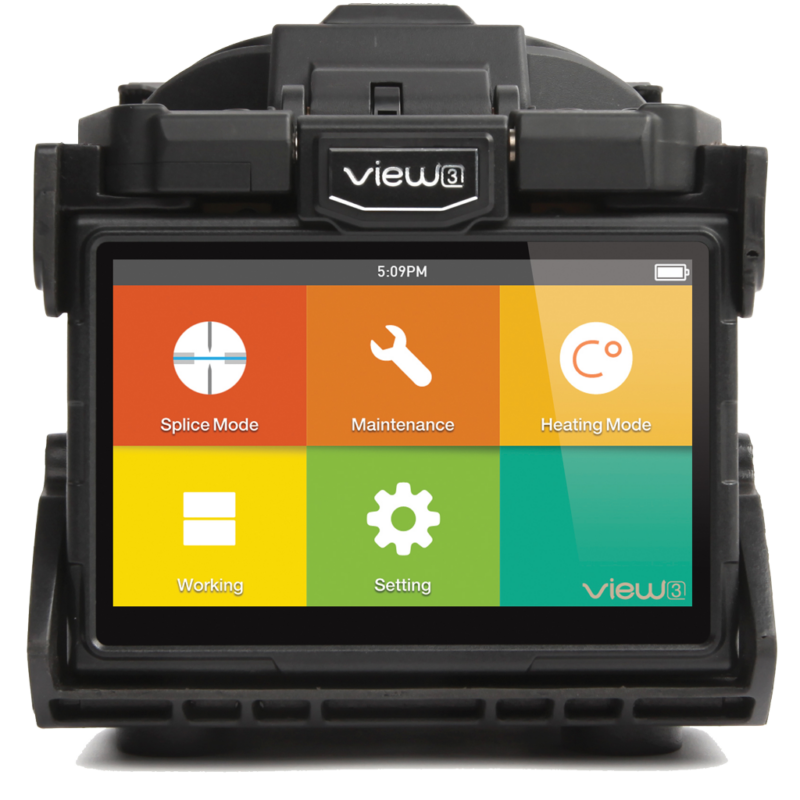
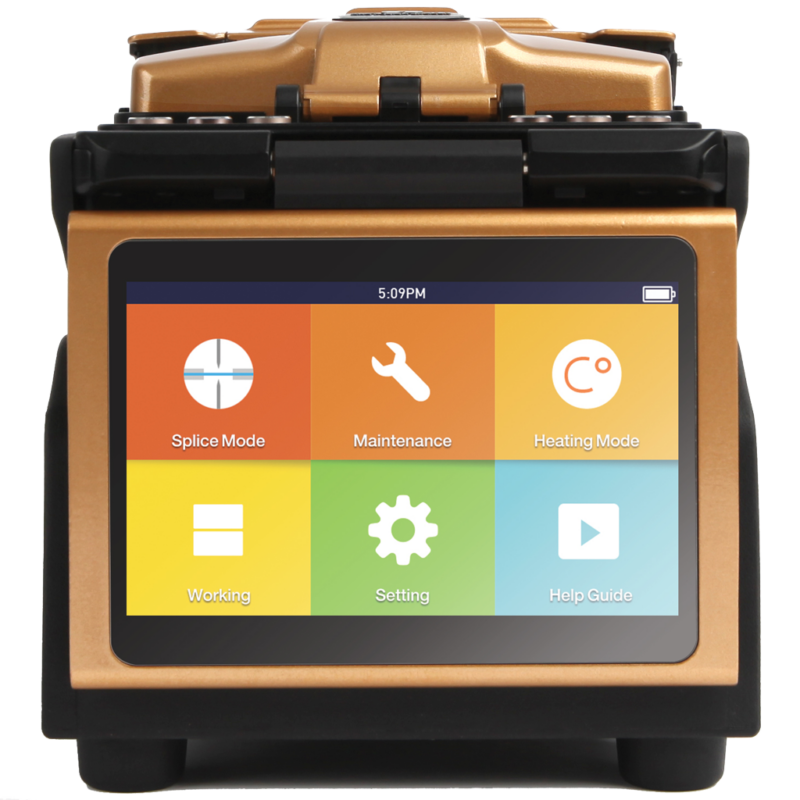
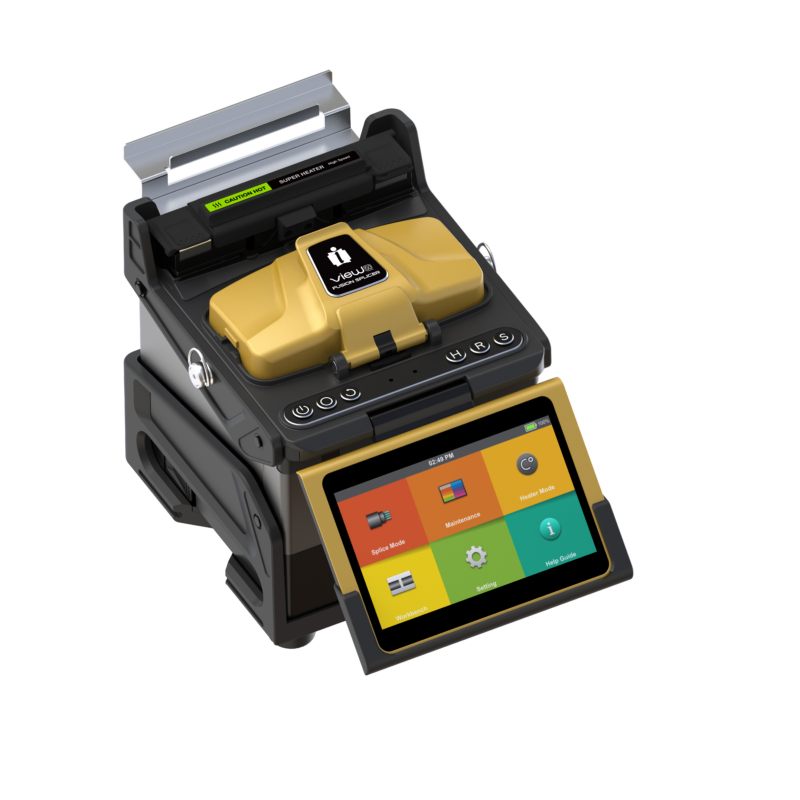
The VIEW 1 Arc Fusion Splicer from INNO Instrument is built to provide an enhanced splicing experience. It employs advanced technology that effectively reduces both splicing and heating times.
Description
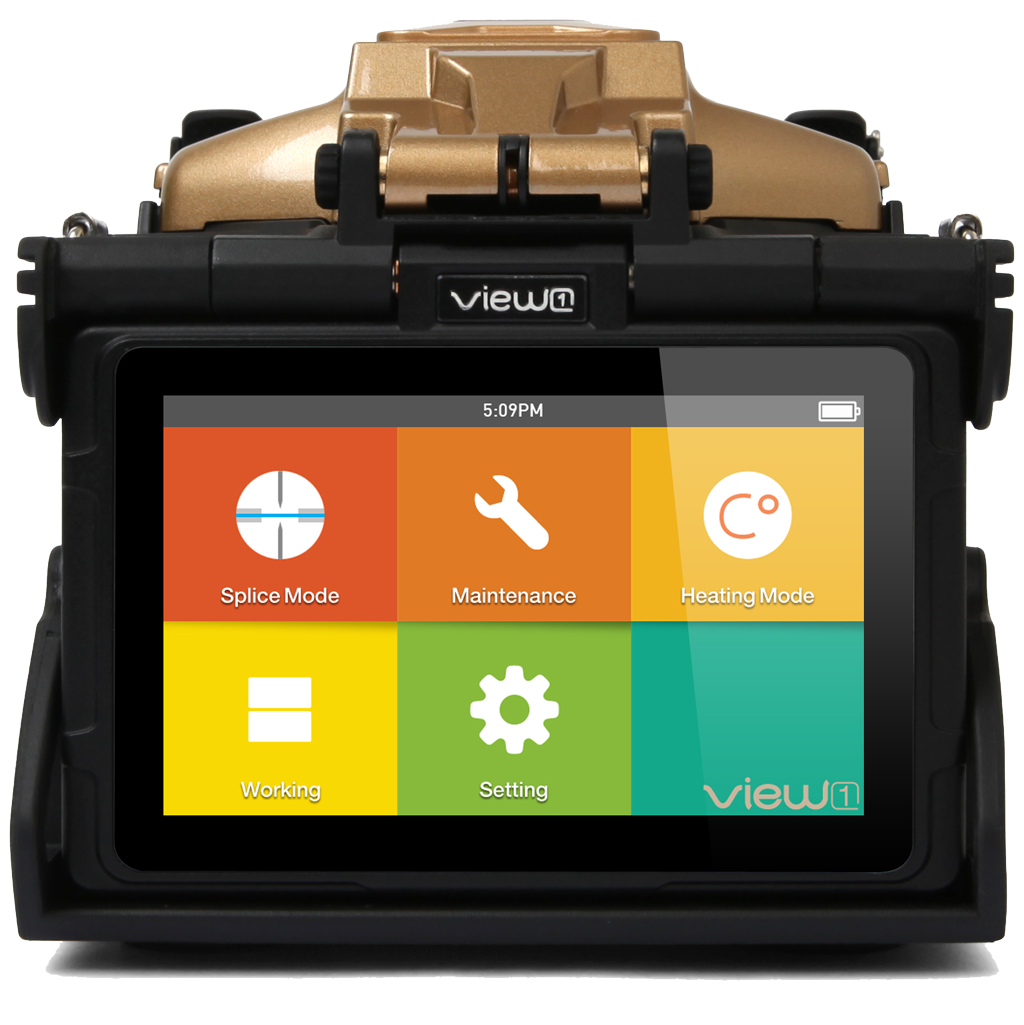
The VIEW 1 Arc Fusion Splicer from INNO Instrument is built to provide an enhanced splicing experience. It employs advanced technology that effectively reduces both splicing and heating times. The device also features a refined estimation method and alignment technique, aimed at ensuring accurate splice loss estimation. Its design is a blend of simplicity and modern style, with a well-engineered internal structure and a sturdy protective cover, making the splicer adaptable to various operating environments. Additionally, the VIEW 1 offers a dynamic operation interface and an automatic splice mode, adding to its user-friendly features.
Firmware & PC Software
| Version | Description | Specific Instructions | Download |
|---|---|---|---|
| 10.06 | Compatible to new LCD monitor General improvements | For new-screen VIEW1 units currently on V10.02–V10.04, first place F14BL_sw_m4.bin and res.zip in the USB root and run the upgrade, then use update.zip for the second stage. From V10.05 onward, use the standard update.zip method. | Download 10.06 |
| 10.03 | General improvements | For new-screen VIEW1 units on V10.02–V10.04, first place F14BL_sw_m4.bin and res.zip in the USB root and run the upgrade, then place update.zip in the USB root and run the upgrade again. | Contact INNO |
| 1.22 | Initial release | For original-screen VIEW1 units on the V1.xx software line, first place F14B_sw_m4.bin and res.zip in the USB root and run the upgrade, then place update.zip in the USB root and run the upgrade again. Do not cross-update between the V1.xx original-screen and V10.xx new-screen generations. | Download 1.22 |
Firmware Update Instructions
| Update Instructions | |
| Prepare USB | Format a USB drive as FAT32. |
| Prepare file | The firmware archive must be named update.zip. If the downloaded ZIP has another filename, rename it to update.zip. Do not extract it unless the selected firmware version says otherwise. |
| Copy file | Place update.zip directly in the USB drive root (main directory) — not inside a folder. |
| Start upgrade | Insert the USB drive and start the software upgrade from the on-device menu. |
| Exceptions | If an Upgrade Method is shown for the selected firmware version, follow that method instead of the standard update.zip procedure. |
| Important | V1.xx / V10.xx are separate generations and are not interchangeable. |
| Version | Description | Download |
|---|---|---|
| V1.7 | V1.7 PC Program for VIEW1 | Download V1.7 |
PC Program Instructions
Nothing to Display
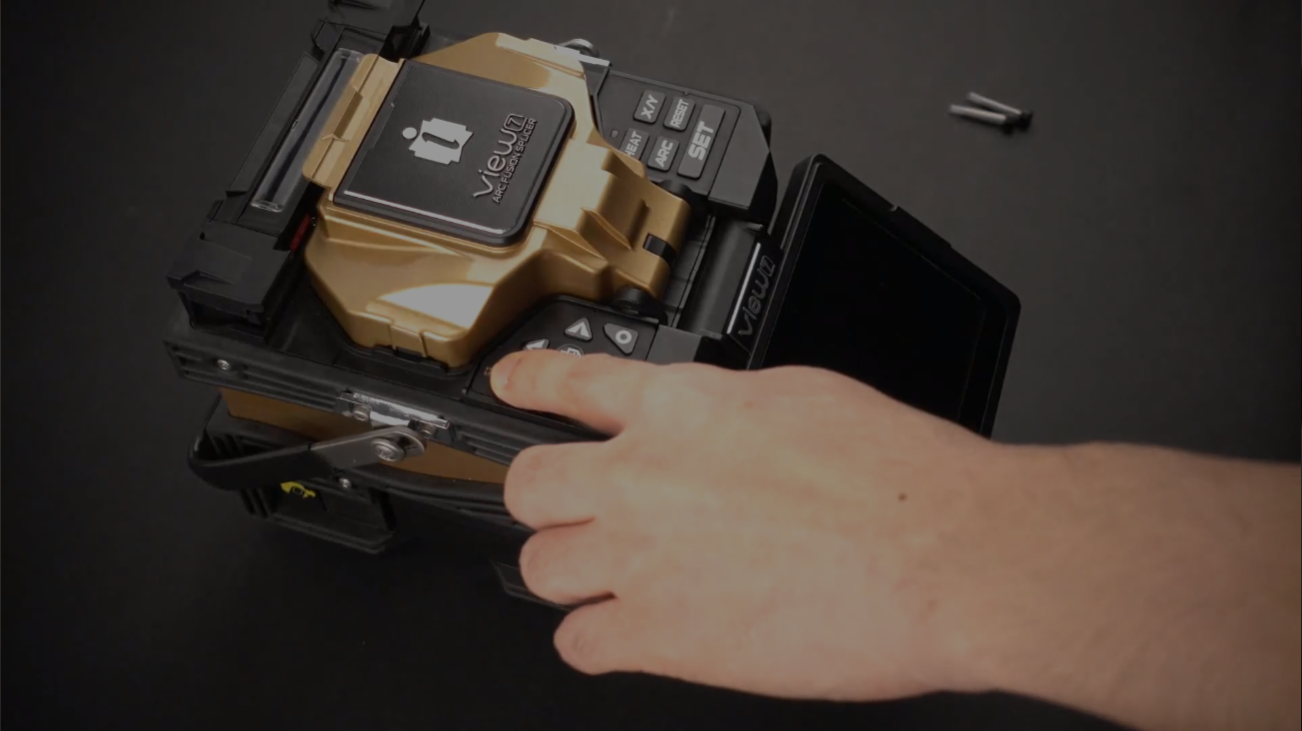
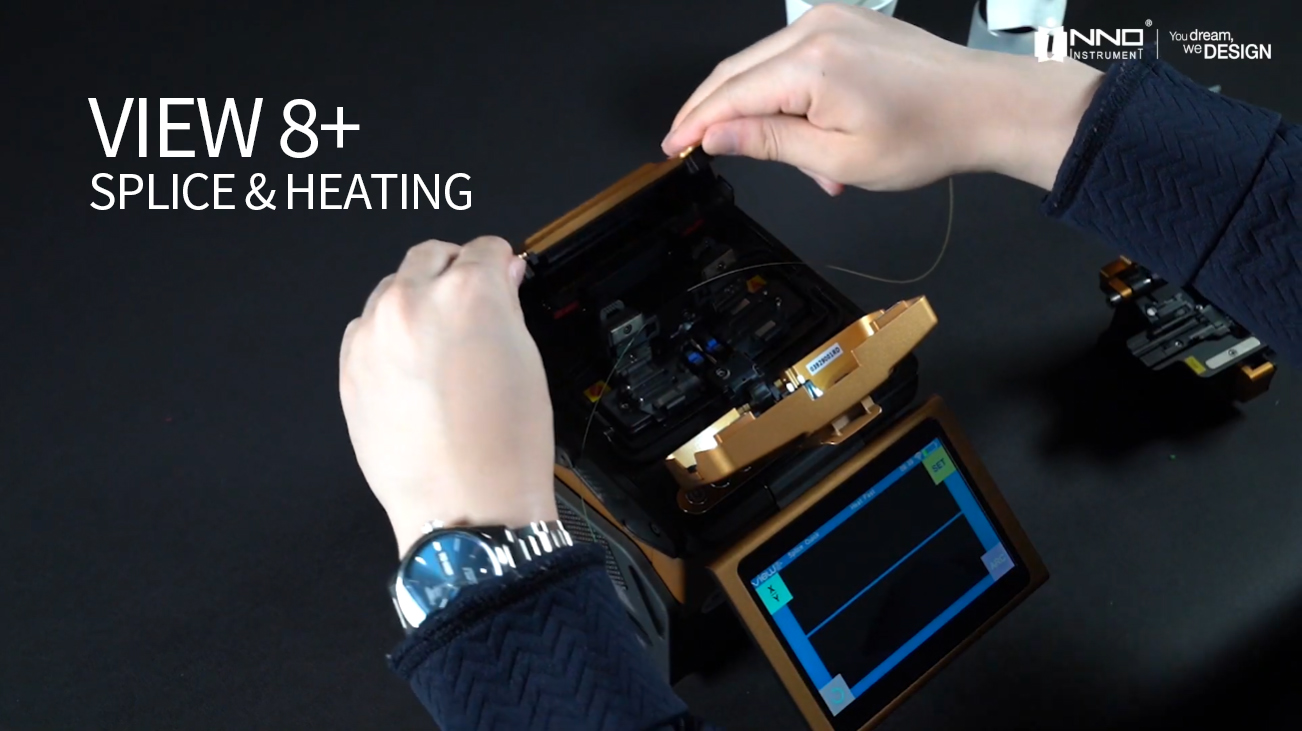
Watch our operation & maintenance videos to get the most out of your devices

We're There To Help
Technical Help & Support
We're committed to providing exemplary support and technical services. Our dedicated team of skilled professionals is always ready to assist, ensuring smooth operation and optimal performance for all INNO products.
InnoCare24
InnoCare 24 is a fast and complete service where our technical support team and authorized distributors respond to customer inquiries within 24 hours via telephone, email, or even in person.
Warranty
INNO Instrument’s warranty is a testament to our confidence in the quality and durability of our products, providing customers with reassurance and support throughout their usage.
For Distributors/Partners
Our global network of distributors can access comprehensive resources and direct support through our Services Portal, specifically designed to streamline troubleshooting, service requests, and product information updates.